
Advanced
Go to Settings → Advanced on your integration to find more options for how Address Capture and Verify behaves.
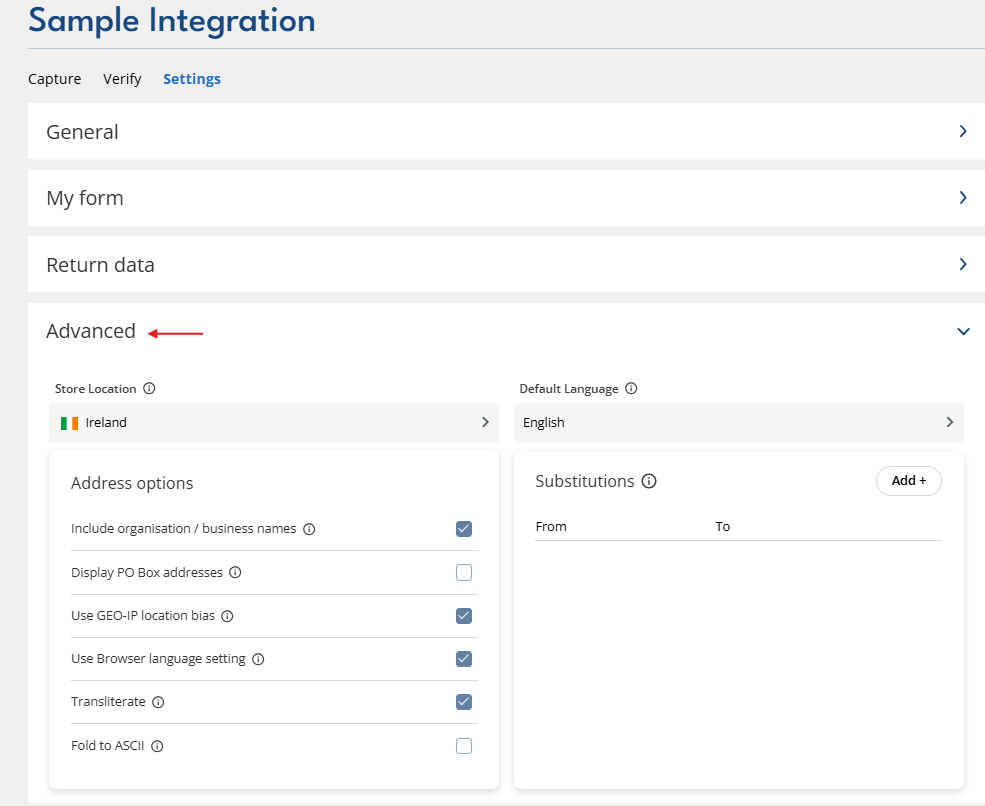
Store location and default language
Store location: Set this to the country your store operates from. It should match the country configured on your website.
Default language: Set this to match the language of your website.
Address options
Include organisation / business names: Choose whether business names appear in autocomplete suggestions.
Display PO Box addresses: Choose whether PO Box addresses appear in autocomplete suggestions.
Use GEO-IP location bias: Prioritises addresses closest to your customer for quicker and easier address entry. With each keystroke, we search the address database for matching entries and sort them by distance from the customer.
Use browser language setting: Automatically use the language set in your customer's browser.
Transliterate: Convert addresses in non-Latin scripts (e.g. Cyrillic, Greek, Arabic) into Latin characters.
Fold to ASCII: Replace accented or special Latin characters with their basic equivalents (e.g. "é" becomes "e", "ß" becomes "ss").
Substitutions: Replace one string with another in the returned address (e.g. "Street" with "St").
How does this affect the control?
If the user is located in a country that you have deselected in your Integration then we will show them the manual address form with your store location chosen from the country dropdown. For extended scenarios, see documentation here.
If your customer's language is not supported for the country in which they are located (e.g. German in USA) then we display labels in the default language.