My Form Editor
We built the My Form Editor to allow you to easily describe your address form, field widths and required fields, then we apply our Address Intelligence to ensure addresses returned are compatible with these requirements.
Choose Settings in your integration and then choose the My Form tab.
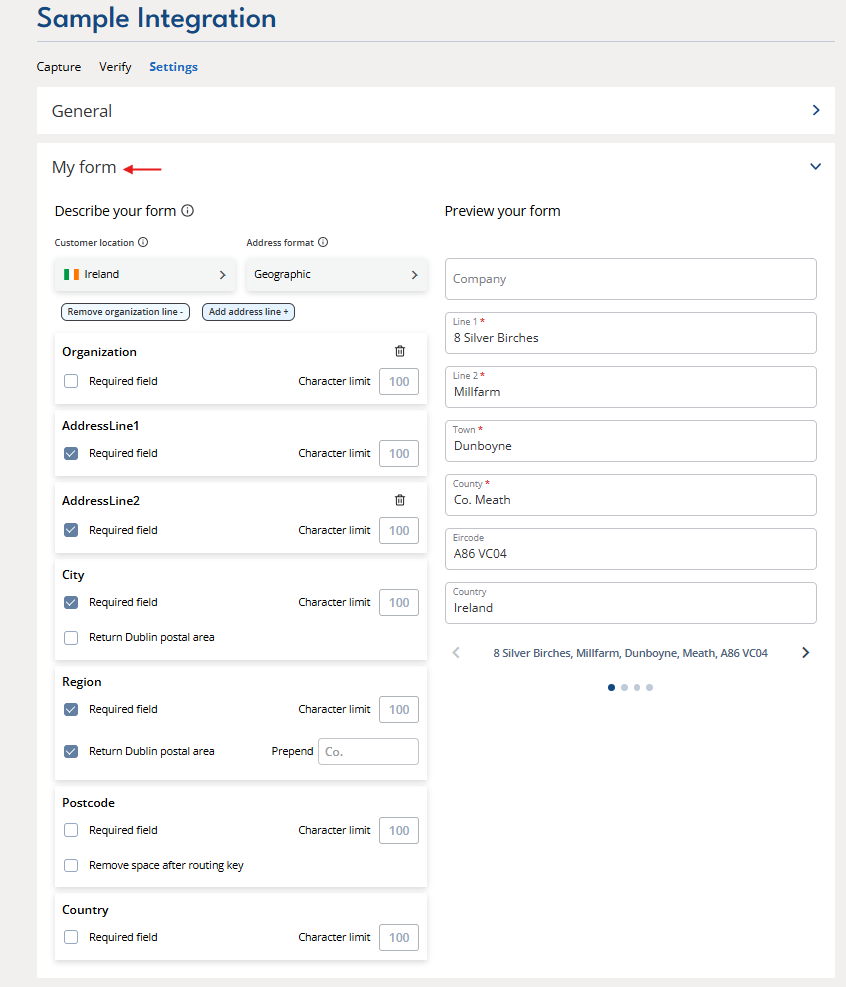
You'll see an address form editor similar to the one below, which will default to your integration default country.
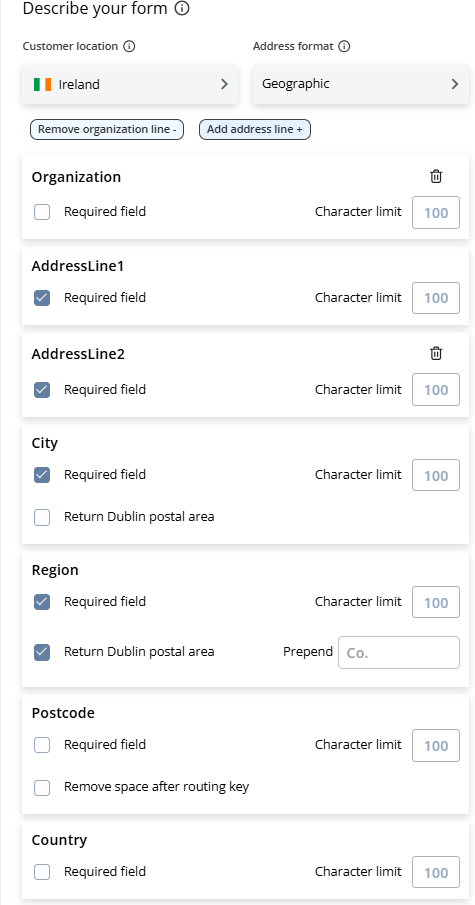
By default, the form is set up to have two address lines above City, Region and Postcode fields. You can add a separate Organization field and/or up to two additional address lines, giving you a total of four.
Simply fill in the details of your requirements and we'll do the rest. We return an address object that is compliant with your address form:
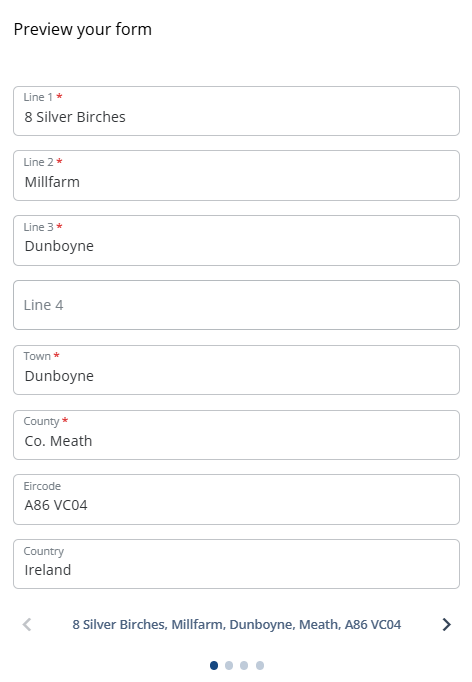
Mandatory fields completed. If a required field would otherwise be empty, we fill it in. In the example address below, we've duplicated the Town field into the Line 3 field.
Field widths respected. Set a character limit on each field and we'll abbreviate where possible before truncating.
Advanced settings
For granular control, you can customize options for multiple countries. Just choose a country from the dropdown list, and any advanced options available for that country will appear. Examples include:
Ireland:
Choose whether Dublin postal districts such as "Dublin 8" appear in the County field or the Town field.
Choose the prefix shown before the county (for example "Co.", as in "Co. Cork"), or remove it completely.
Remove the space after the routing key in the Eircode (for example "D02X285" instead of "D02 X285").
UK: Return the country name (England, Scotland, Wales, Northern Ireland) in the Region field.
US: Return full state names in the Region field rather than the default two-letter abbreviation.
Form Preview
To the right of the editor, you'll find a Form Preview with a set of sample addresses, so you can check how each one will look in your form as you make changes.