
Dynamics 365
Overview
The Autoaddress Address Capture solution for Dynamics 365 adds an address search box to your forms. Users start typing an address (or an Eircode), pick the correct match from the suggestions, and the address is written into the record's address columns.
The solution is installed through Power Apps as a managed solution. Once it is installed you add the AddressCapture component to each form where you want address search and choose which columns it fills in.
This guide walks through importing the solution, connecting it to your Autoaddress account, adding the component to a form and mapping the address fields.
Before you start
You need access to Power Apps (make.powerapps.com) for your Dynamics 365 environment, with permission to import solutions and edit forms.
Have your Autoaddress API key to hand. The key is entered once, during the import, and cannot be changed afterwards without reinstalling the solution (see Changing your API key below), so ensure you use the right key.
Download the Autoaddress managed solution file (a
.zipfile supplied by Autoaddress) to your computer.
Step 1 – Import the solution
Go to make.powerapps.com and check that the correct Environment is selected in the top right.
In the left menu, choose Solutions.
Click Import solution in the command bar at the top of the page.
Click Browse, select the Autoaddress managed solution
.zipfile and click Next.Check the details (Name: Autoaddress, Type: Managed, Publisher: AutoAddress) and click Next.
On the Environment Variables screen, enter your Autoaddress API key in the AutoaddressApiKey field.
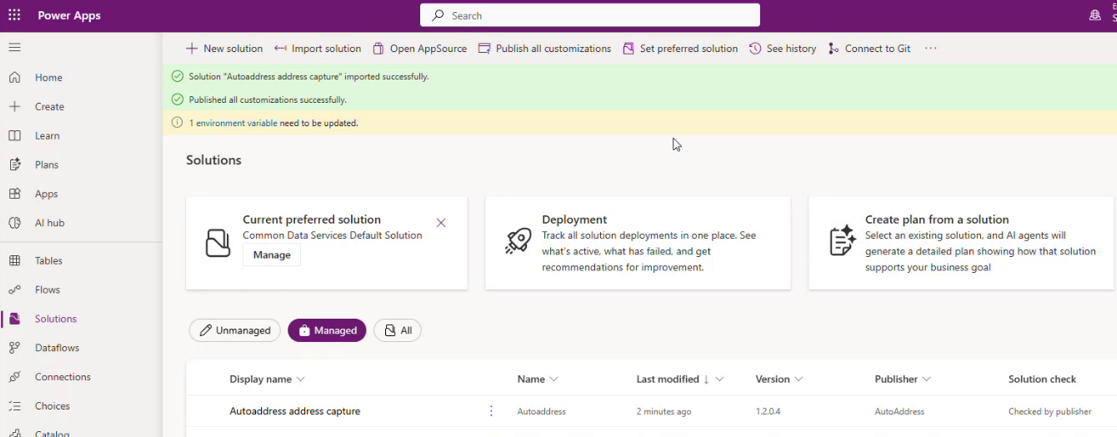
Click Import. The import takes a few minutes. When it finishes, a green banner confirms that the solution Autoaddress address capture was imported successfully, and it appears in the list of managed solutions.
Important: the API key cannot be changed once the solution has been imported. Because it is a managed solution, its settings cannot be edited in your environment. If you ever need to use a different key you will need to uninstall and reinstall the solution – see Changing your API key at the end of this guide.
Step 2 – Publish all customizations
On the Solutions page, click Publish all customizations in the command bar.
Wait for the message Published all customizations successfully. This can take a few minutes.
Publishing makes the AddressCapture component available to your forms.
Step 3 – Open the form you want to add address search to
The example below adds address search to the Contact form of a Sales app. You can add it to any form in the same way.
In the left menu, choose Apps.
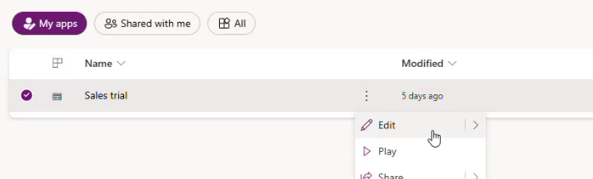
Find the model-driven app that contains the form (for example your Sales app), click the ⋯ (more) button next to it and choose Edit. The app designer opens.
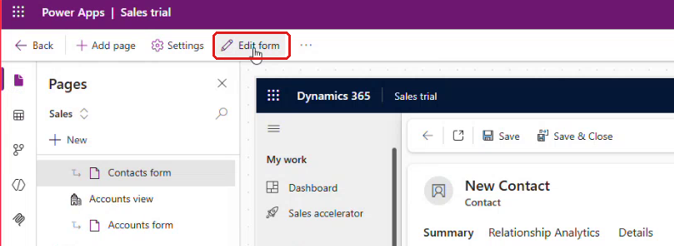
In the Pages panel on the left, select the form – for example Contacts form. The form is shown in the preview on the right.
Click Edit form in the command bar at the top. The form designer opens.
Step 4 – Add an Autoaddress column to the form
The address search box needs a text column of its own on the form. You create this column once per table.
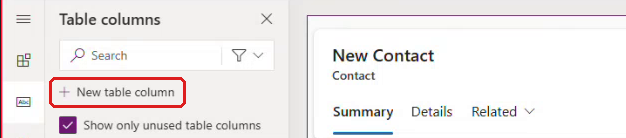
In the Table columns panel on the left of the form designer, click New table column.
Enter the Display name
Autoaddress, set the Data type to Single line of text (Format: Text) and click Save.
Find the new Autoaddress column in the Table columns list (you can use the search box) and drag it onto the form where you want the address search to appear – for example just above the Address 1 fields.
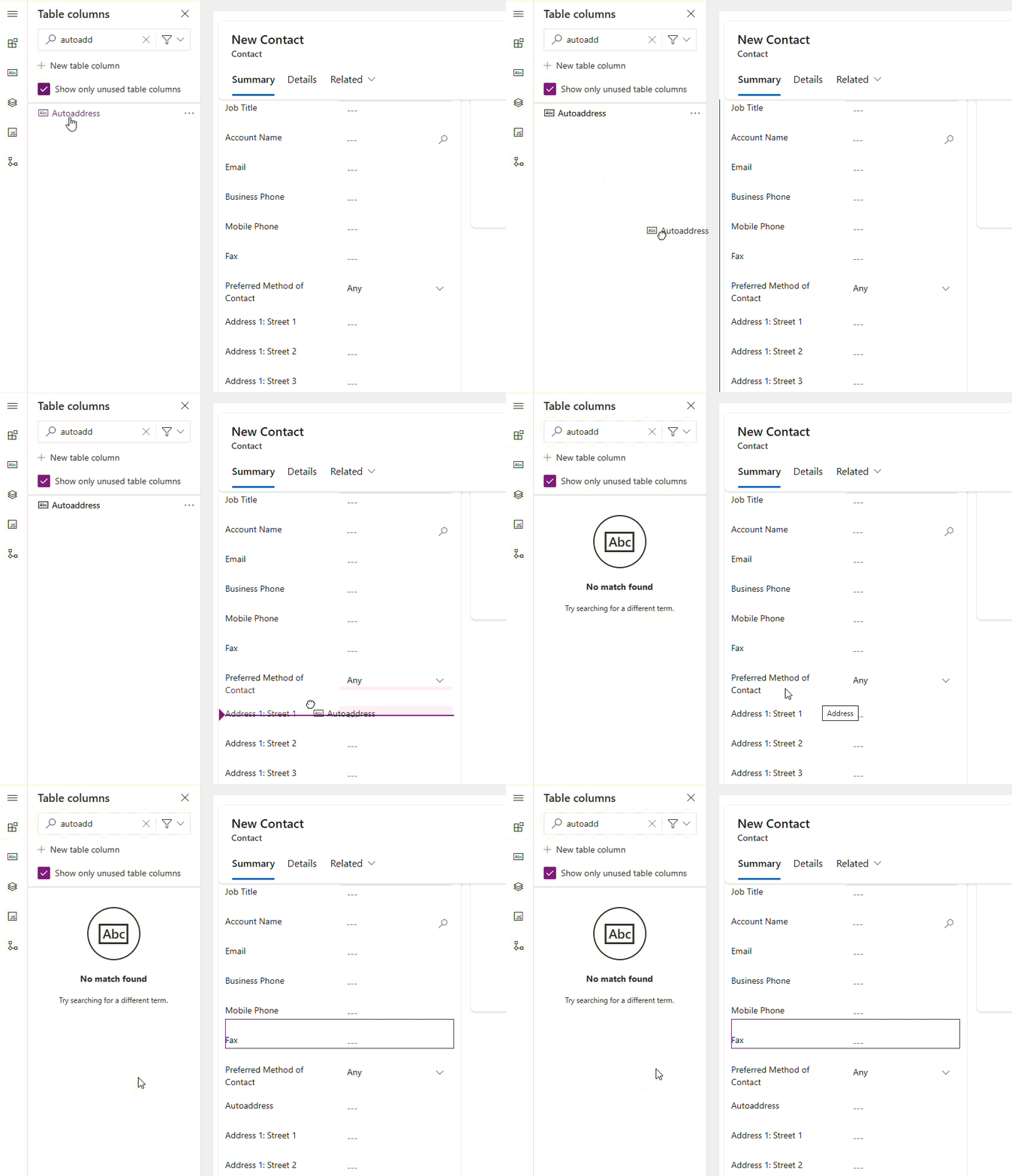
Step 5 – Attach the AddressCapture component
Select the Autoaddress field on the form. Its properties open in the panel on the right.
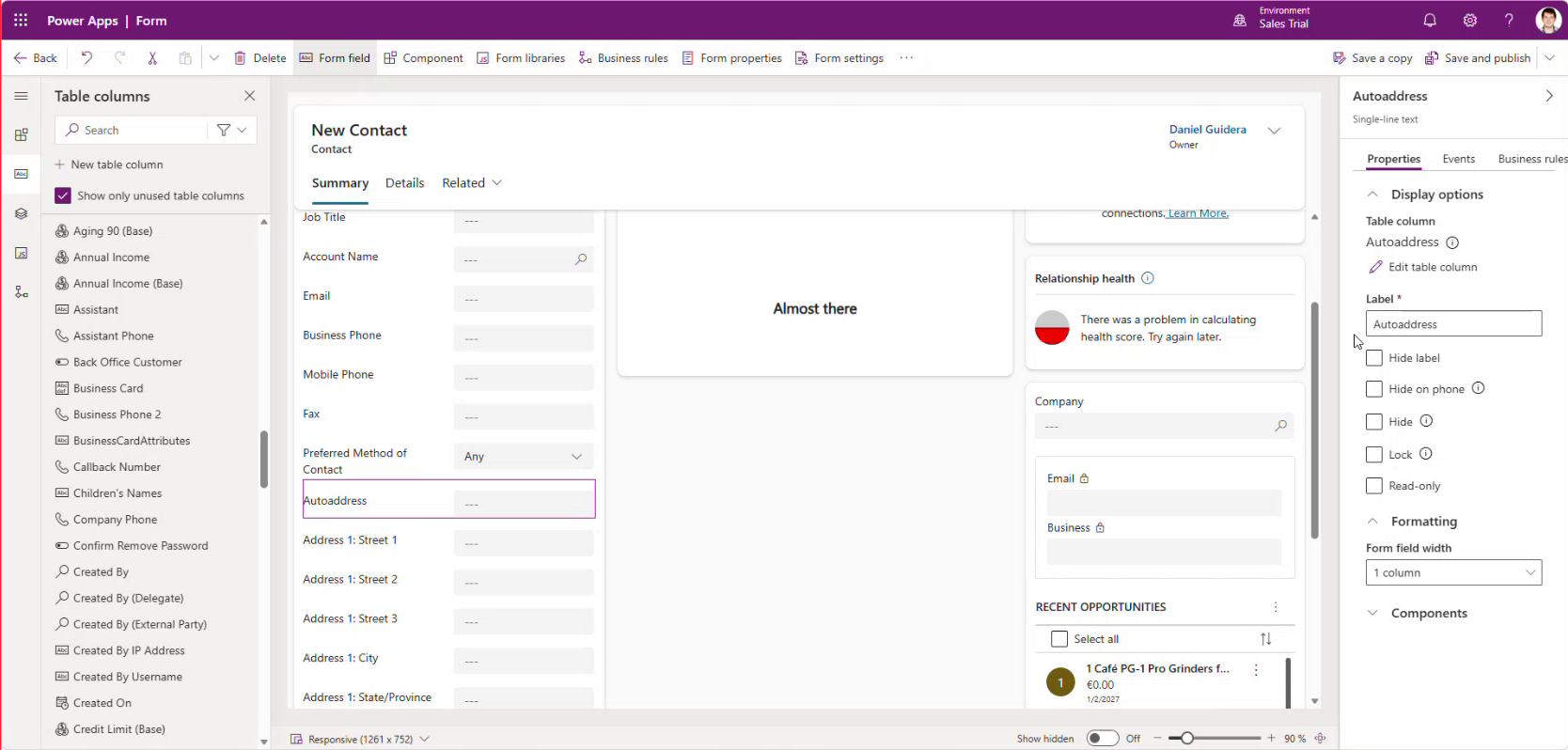
Expand the Components section at the bottom of the panel and click + Component.
The first time you do this, AddressCapture is not in the list. Click Get more components at the bottom of the list.
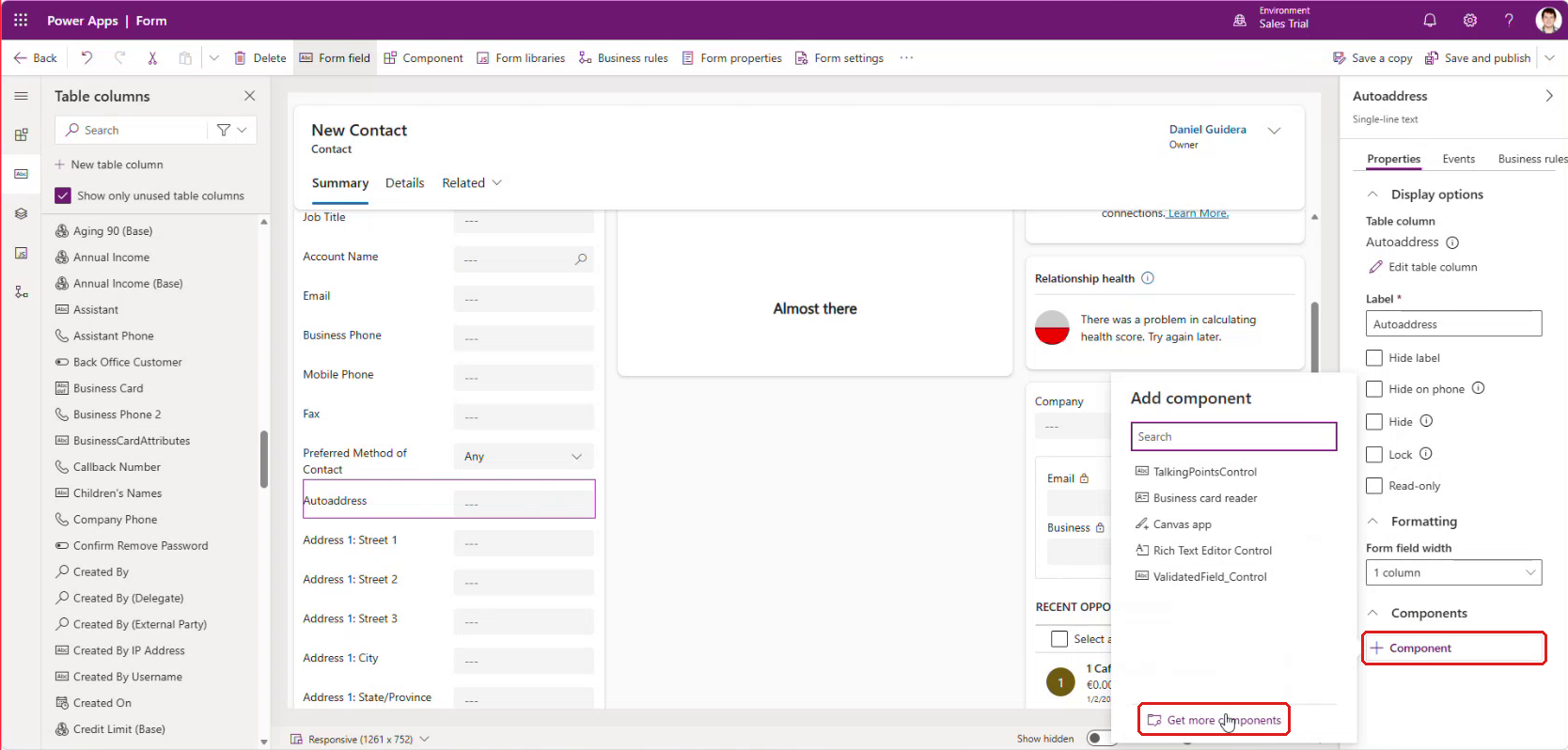
In the Get more components panel, tick AddressCapture (owner: AutoAddress) and click Add.

Click + Component again and choose AddressCapture. The Add AddressCapture panel opens.
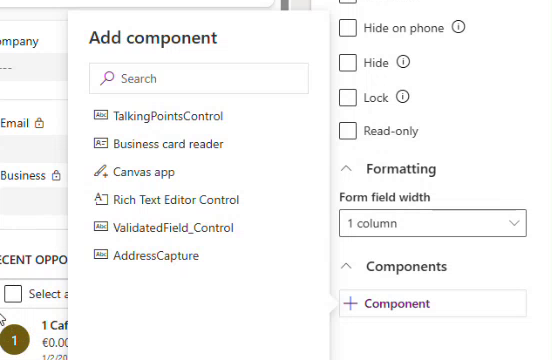
Step 6 – Map the address fields
In the Add AddressCapture panel you choose which table column each part of the selected address is written to. Full Address is already set to the Autoaddress column. For each of the other properties, pick the column from the Table column drop-down. For the standard Address 1 columns on the Contact table the mapping is:
AddressCapture property | Table column |
|---|---|
Organization | Leave blank, unless you have a column for the organisation name at the address |
AddressLine1 | Address 1: Street 1 |
AddressLine2 | Address 1: Street 2 |
AddressLine3 | Address 1: Street 3 |
AddressLine4 | Address 1: Street 4 (If available) |
City | Address 1: City |
Region | Address 1: State/Province |
Postcode | Address 1: ZIP/Postal Code |
Country | Address 1: Country/Region |
Then:
Under Show component on, tick Web, Mobile and Tablet so the search box appears in every client.
Click Done.
Note: the mapping belongs to the form. If you want address search on other forms – for example the Account form – repeat Steps 3 to 7 for each one.
Step 7 – Save and publish the form
Click Save and publish in the top right of the form designer. The Autoaddress field on the form now shows the placeholder text Enter Eircode or address.
Wait for publishing to finish before testing.
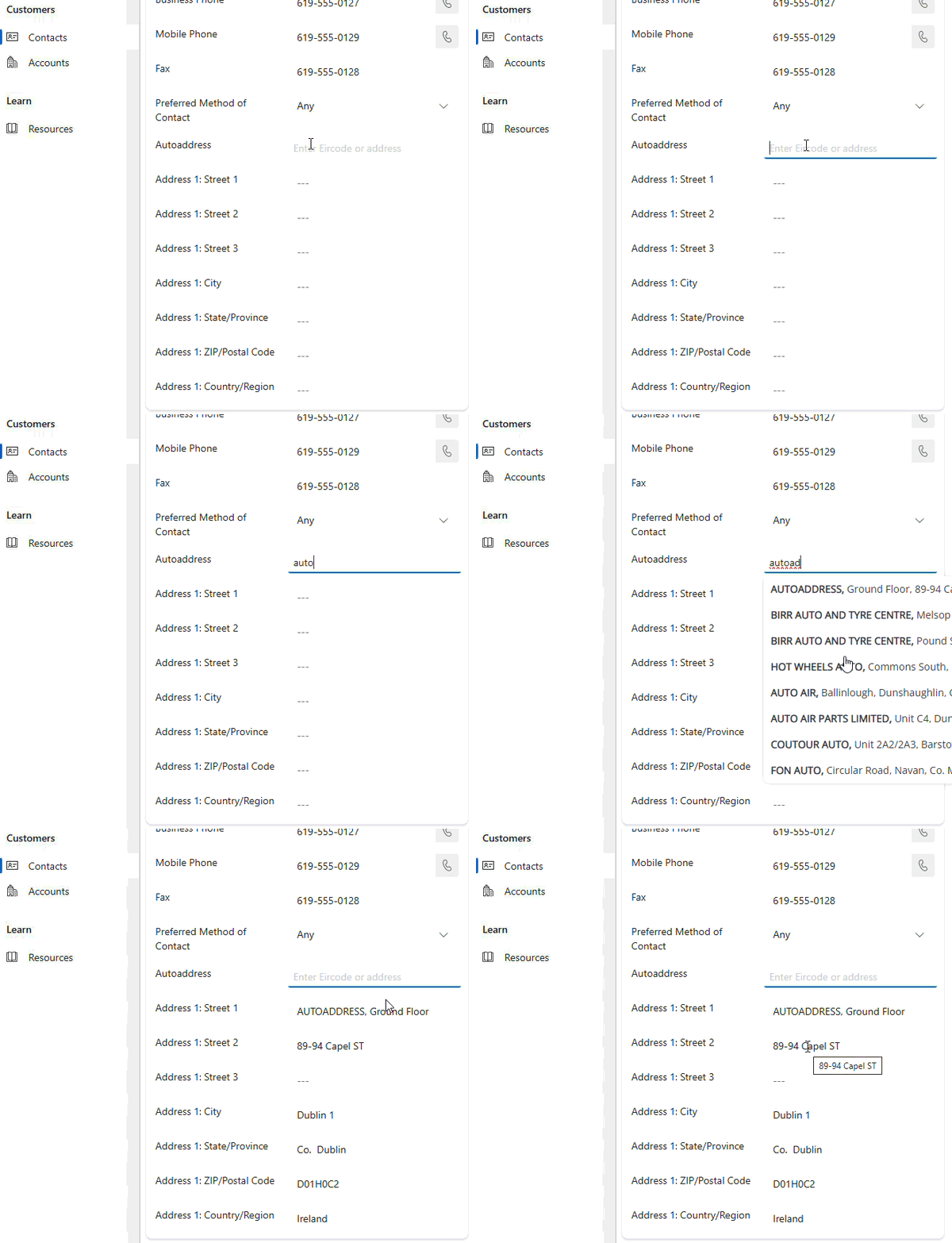
Step 8 – Test it
Open a record that uses the form – for example go to Contacts and open a contact.
In the Autoaddress field, start typing an address or an Eircode and pick the correct match from the suggestions.
The mapped columns – Street 1, Street 2, City, State/Province, ZIP/Postal Code and Country/Region – are filled in with the selected address. Save the record.
Updating the solution
To install a newer version, import the new .zip file in the same way as in Step 1. Power Apps recognises it as an update to the installed solution by comparing the version numbers.
Changing your API key
The API key is stored in the managed solution and cannot be edited after the import. To change it:
Remove all instances of the AddressCapture component from all forms.
On the Solutions page, delete the Autoaddress address capture solution.
Import the solution again (Step 1), entering the new API key, and add the component back to your forms (Steps 3 to 7).