
Salesforce
Overview
The Autoaddress Address Capture package for Salesforce adds two things to your org:
Autoaddress Capture – a component you place on record pages (Contact, Account, Lead and so on). Users start typing an address, pick the correct match from the suggestions, and the address is written into the record.
Autoaddress Mapper – an admin tool where you decide which Autoaddress fields are written into which Salesforce fields for each object.
This guide walks through installing the package, connecting it to your Autoaddress account, adding the component to a page and setting up field mappings.
Before you start
You need to be a System Administrator in a Salesforce org that uses Lightning Experience.
Have your Autoaddress API key to hand.
Use the package install link provided by Autoaddress: install Autoaddress Address Capture.
Step 1 – Install the package
Open the package install link and log in to your Salesforce org.
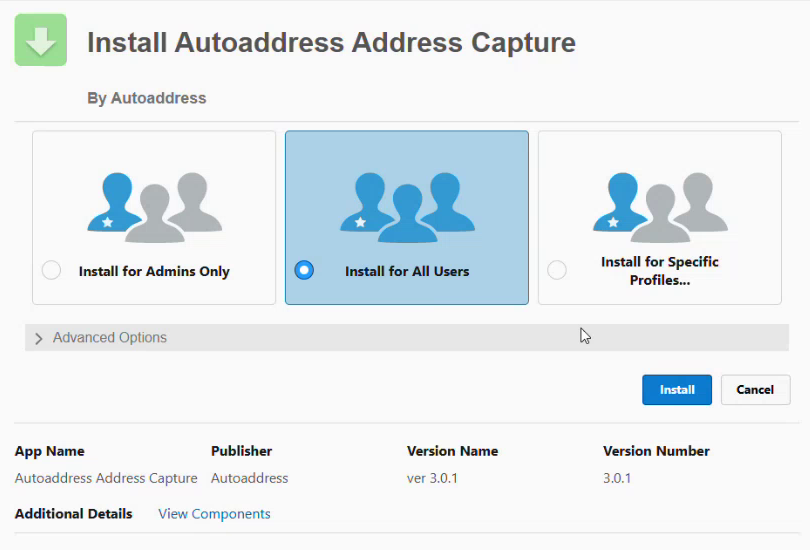
On the Install Autoaddress Address Capture screen, select Install for All Users.
Click Install. The installation takes a minute or so; click Done when you see Installation Complete!.
To confirm, go to Setup, search for Installed Packages in Quick Find and check that Autoaddress Address Capture is listed.
Step 2 – Add your Autoaddress API key
Installing the package creates a named credential called Autoaddress API. You need to put your API key into it.
In Setup, type Named Credentials in Quick Find and open it. You will see Autoaddress API in the list (URL
https://api.autoaddress.com).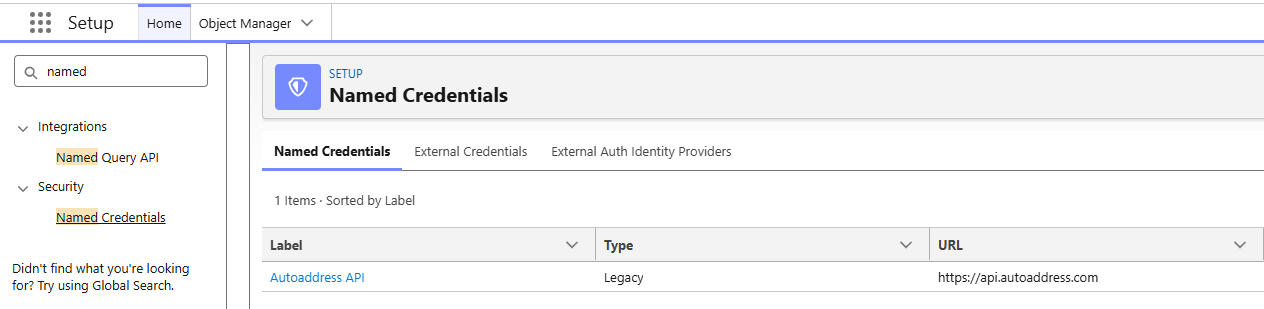
Open Autoaddress API and click Edit.
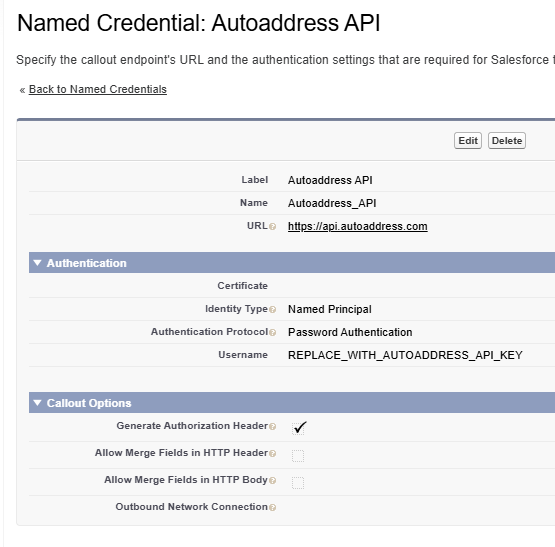
In the Authentication section, replace the Username value
REPLACE_WITH_AUTOADDRESS_API_KEYwith your Autoaddress API key. Leave the other settings as they are (Identity Type: Named Principal, Authentication Protocol: Password Authentication, Generate Authorization Header ticked).Click Save.
Note: when you install an update to the package, this field is reset to the placeholder text. Re-enter your API key here after every package update.
Step 3 – Add the Autoaddress Capture component to a page
The example below uses the Contact record page. You can add the component to any record page in the same way.
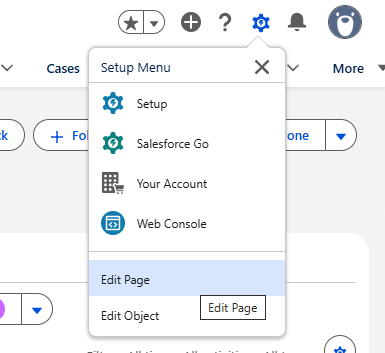
Open a Contact record. Click the gear icon in the top right and choose Edit Page. The page opens in Lightning App Builder.
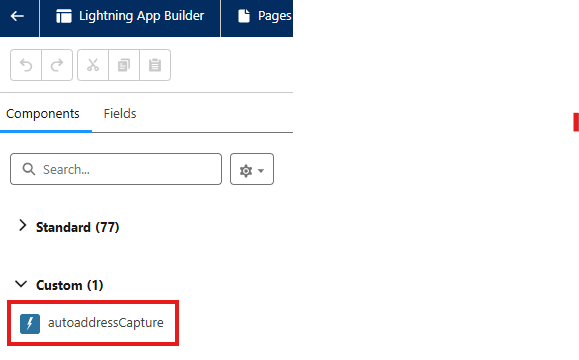
In the Components panel on the left, scroll down to the Custom section and find autoaddressCapture.
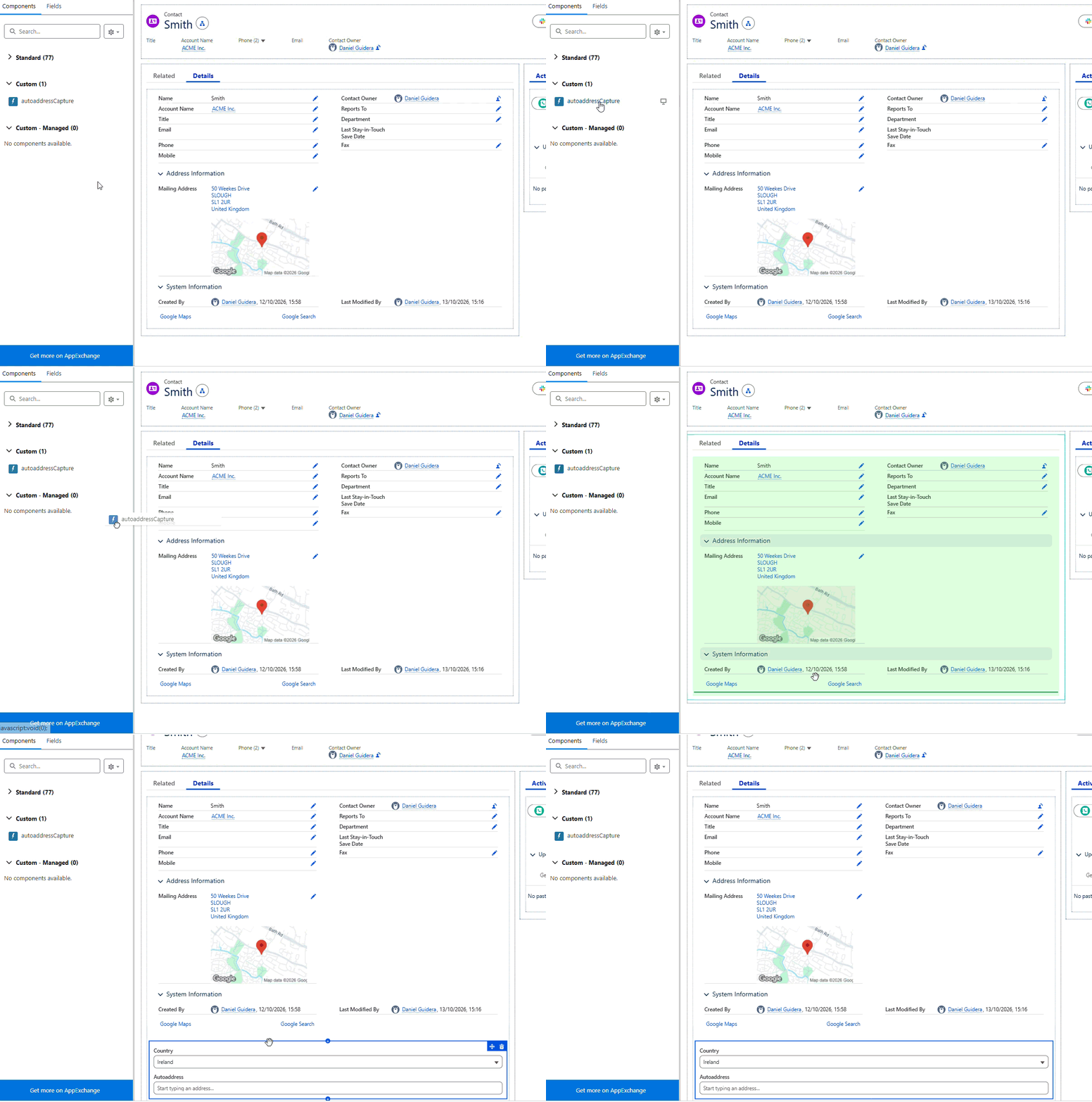
Drag it onto the page where you want the address search to appear – for example at the bottom of the Details tab.
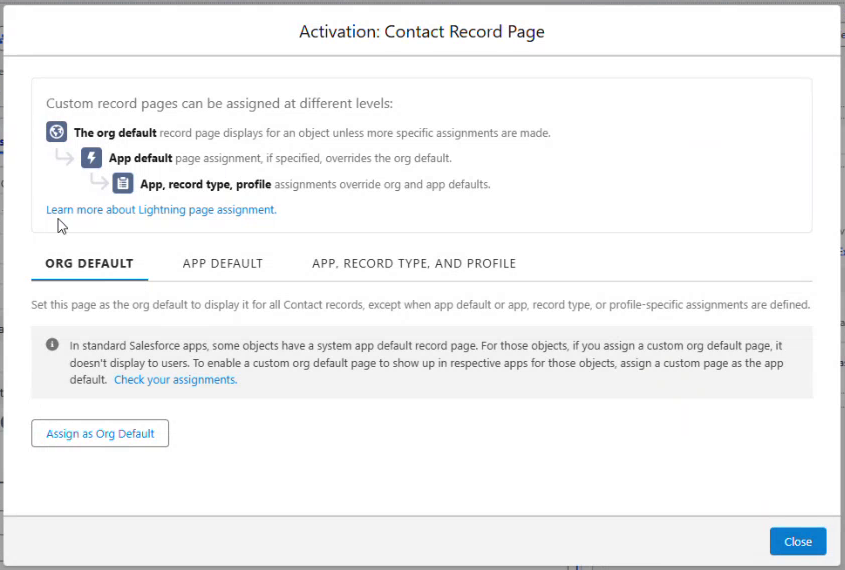
Click Save. If the Salesforce Activation Wizard for the page pops up, configure as per your orgs requirements.
Go back to the record page. The component now shows on your page in your chosen position. It shows a Country selector and an Autoaddress search box. Start typing an address and pick the correct match from the suggestions.
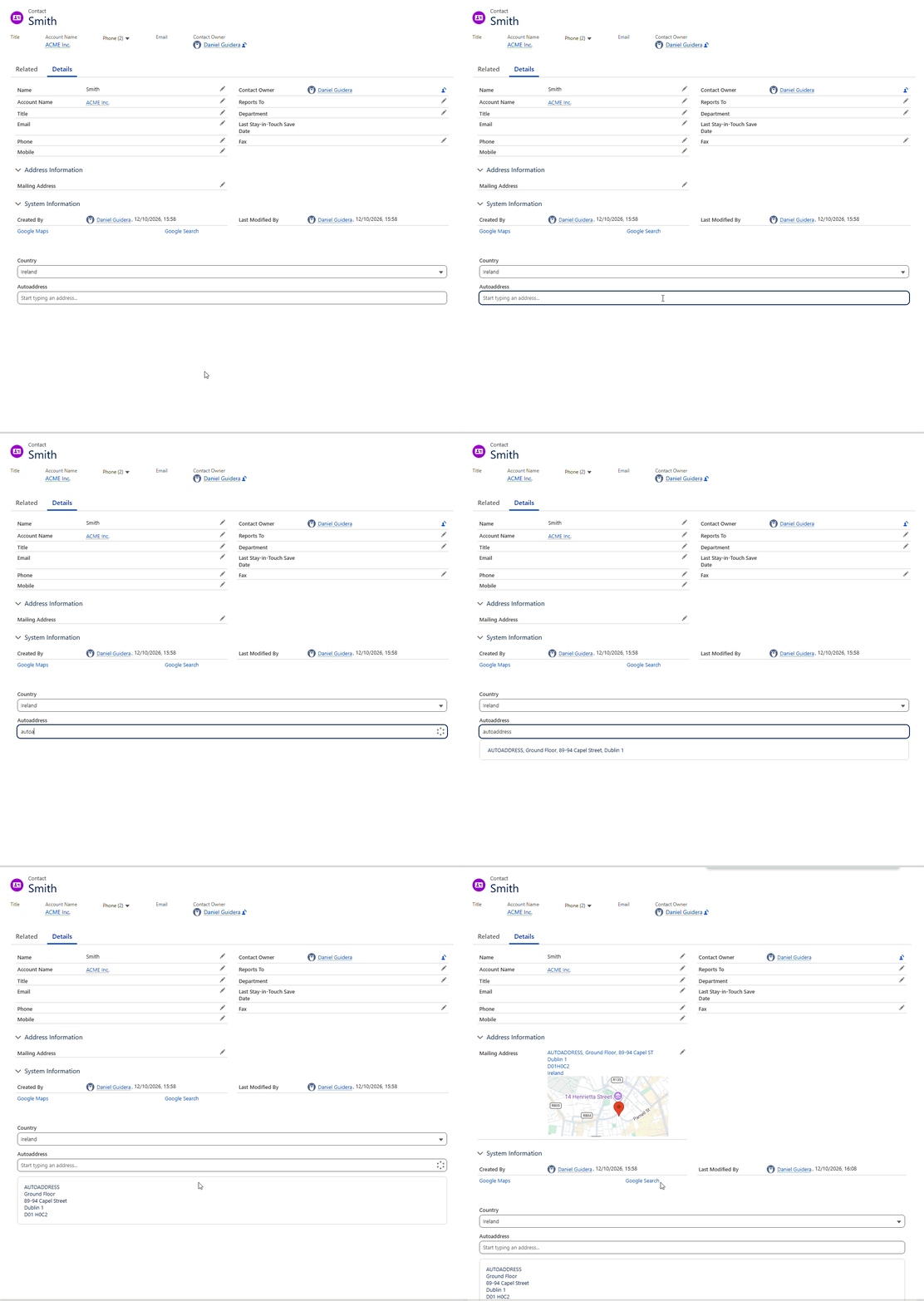
The Contact record will work out of the box as the plugin includes a default mapping to the mailing address. For other objects (for example Account) or for custom pages, set up a mapping with the Autoaddress Mapper – see Steps 4 and 5.
Step 4 – Create the Autoaddress Mapper page
The Mapper is a component that you place on its own app page.
In Setup, type Lightning App Builder in Quick Find, open it and click New.
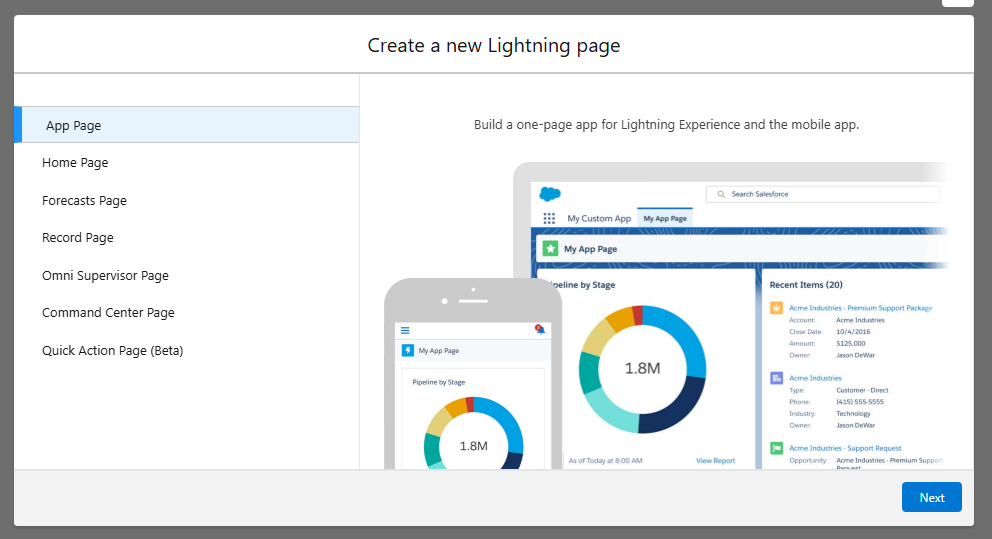
Choose App Page and click Next.
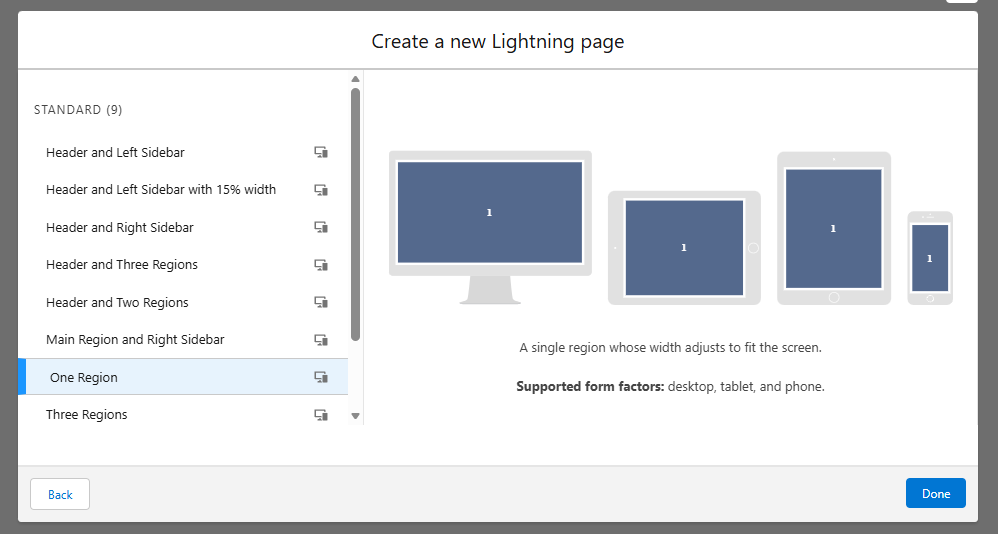
Enter the label Autoaddress Mapper and click Next, then choose the One Region layout and click Done.
In the Components panel, scroll to the Custom section and drag addressMappingAdmin into the region. It appears on the page as Address Field Mapping Setup.

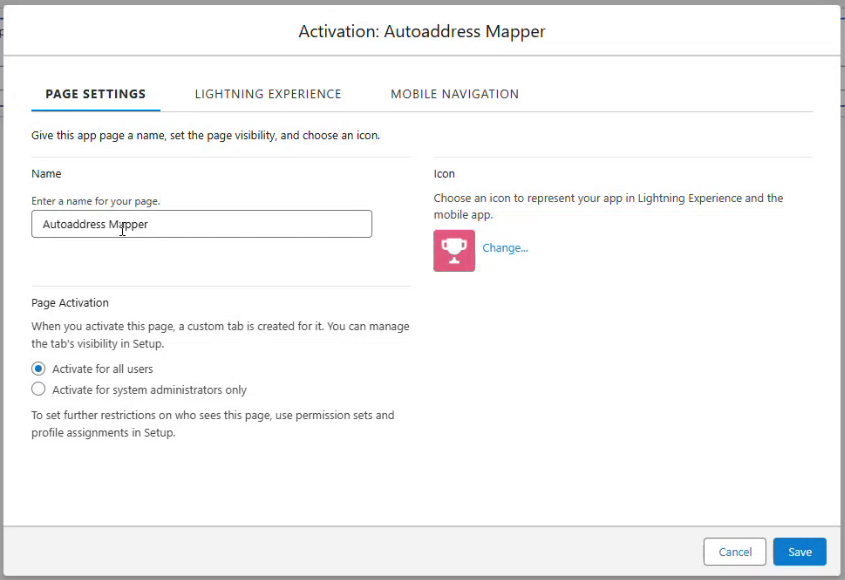
Click Save, then Activate. On the Page Settings tab keep the name, choose who can see the page (Activate for all users, or Activate for system administrators only if you prefer to keep this admin tool to administrators) and click Save. If Salesforce asks whether to add the page to a navigation menu, you can skip this – the page is available from the App Launcher.
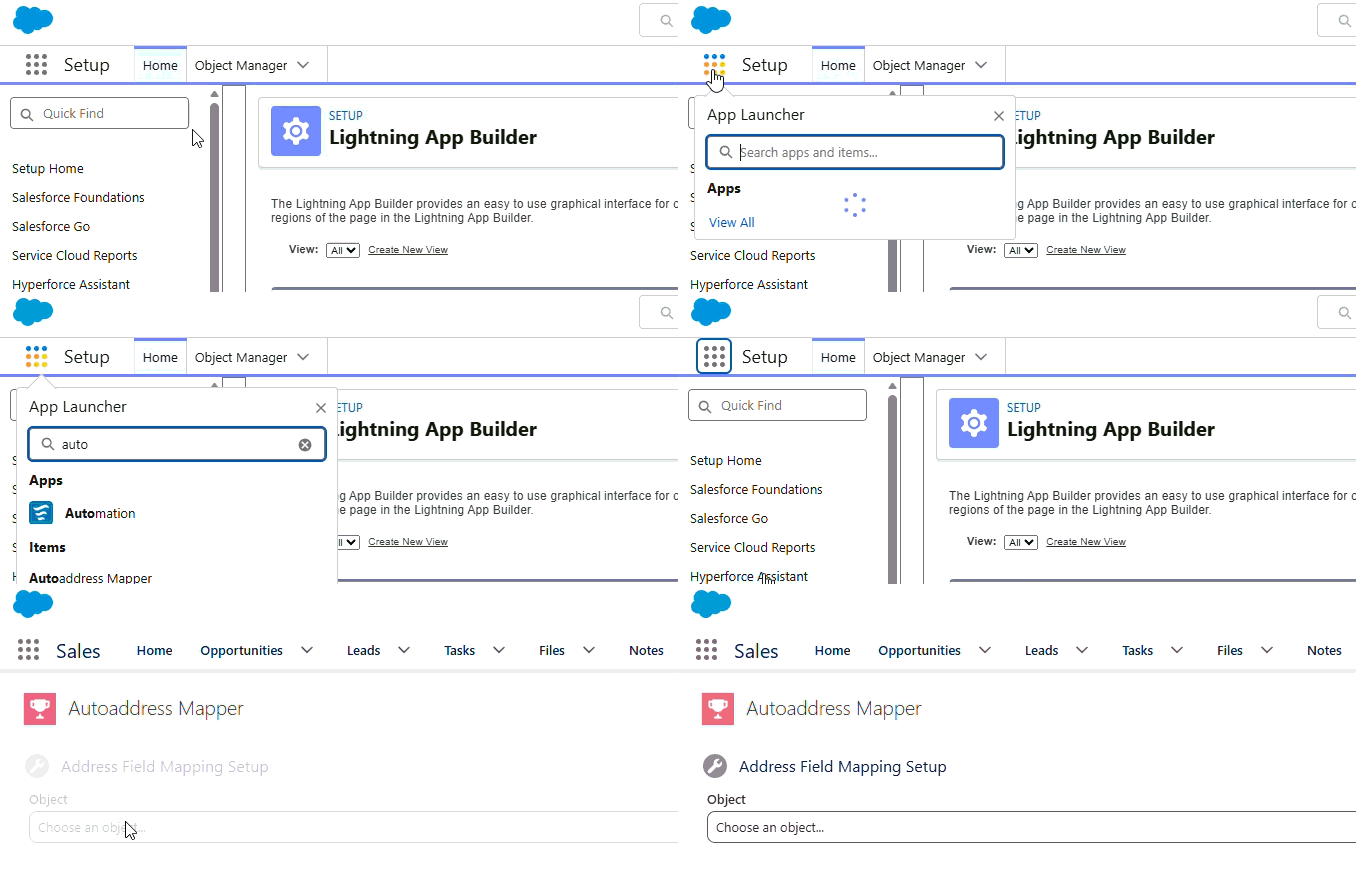
To open the Mapper, click the App Launcher (grid icon in the top left of the screen), search for Autoaddress and choose Autoaddress Mapper.
Step 5 – Map Autoaddress fields to Salesforce fields
When the Mapper opens it scans your org for objects and pages that contain address fields, so it can take a moment to load. To create your mapping:
Object: choose the object you want to map, for example Account.
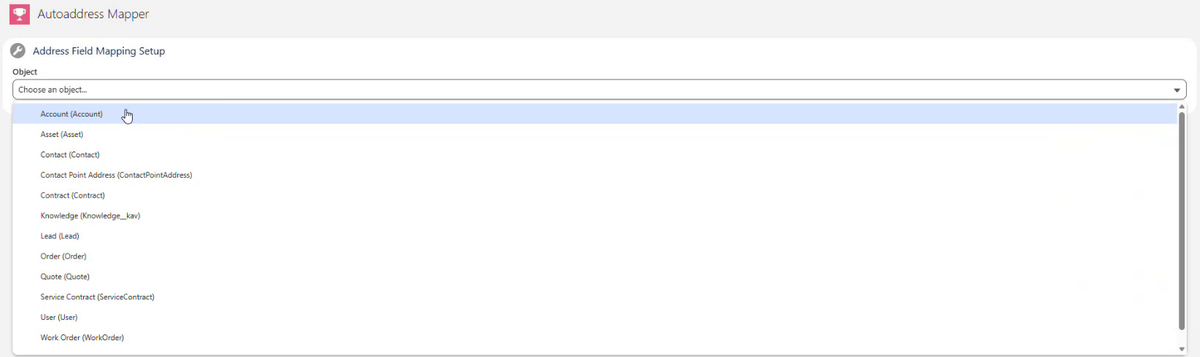
Target Field: choose the Salesforce field to fill, for example Shipping Street.
Choose how the field should be filled in:
Copy one Autoaddress field directly – pick a single source field:
organization,line1toline4,city,region,postcode,countryorcountryIso.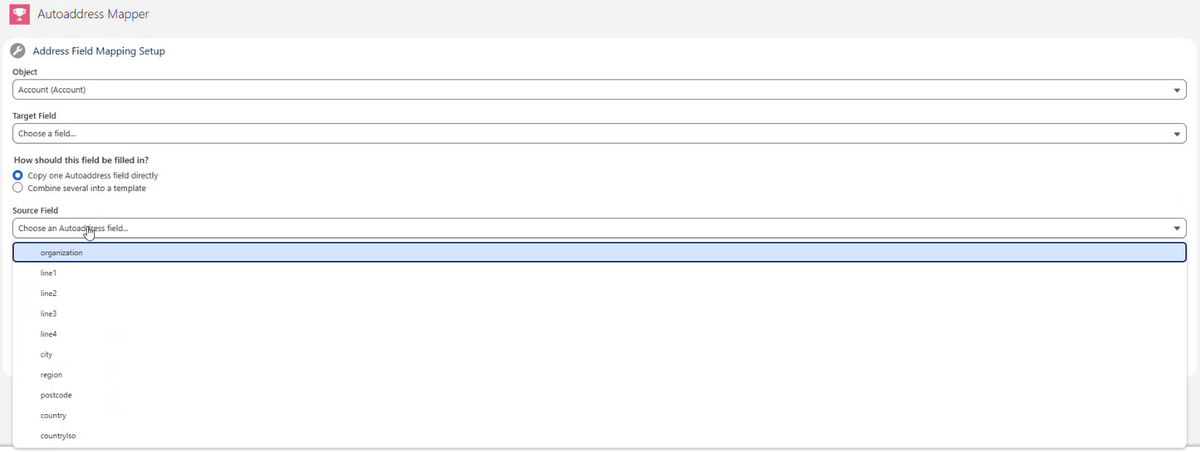
Combine several into a template – Salesforce has a single Street field rather than separate address lines, so for Street fields click the chips to build a template such as
{line1}, {line2}, {line3}.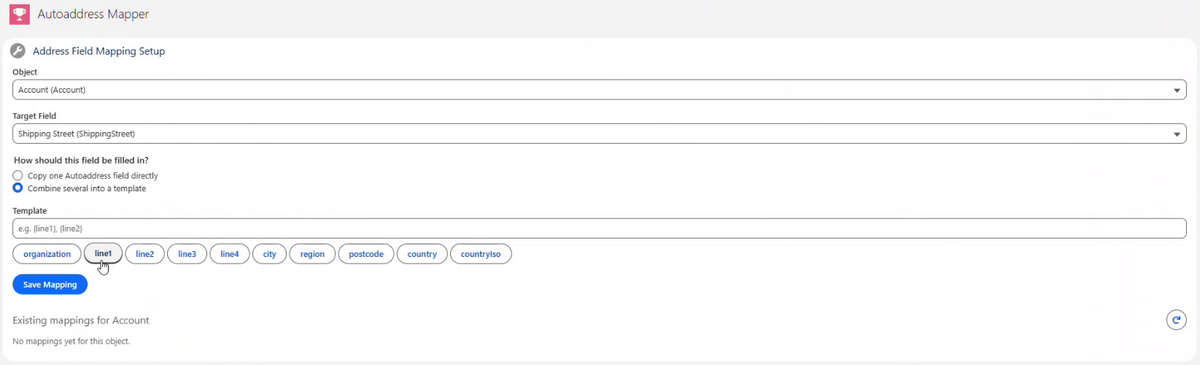
Click Save Mapping. The mapping appears under Existing mappings for <object>; if it does not show straight away, use the refresh button at the bottom right of the page.
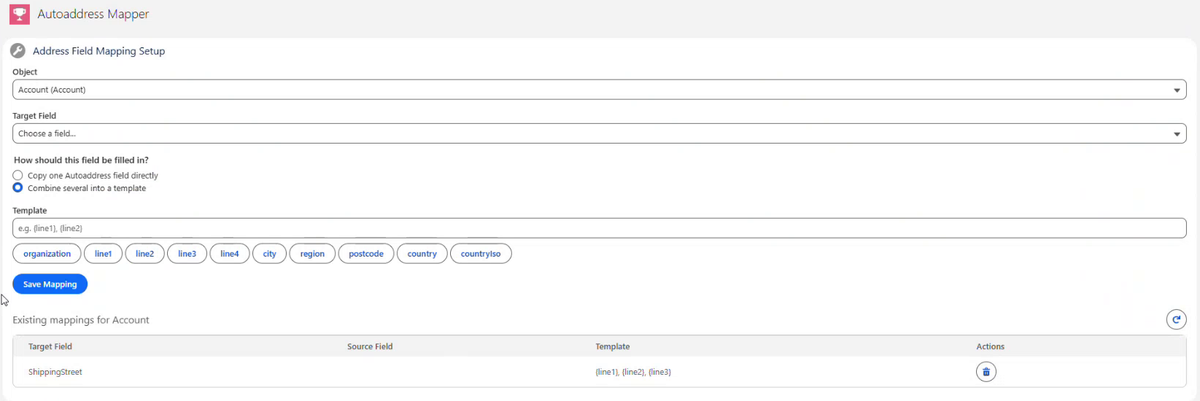
Repeat for the remaining address fields (City, State/Province, Postal Code, Country).
Country code fields: if the Salesforce field is a country code (for example Shipping Country Code) rather than a country name, map it to
countryIso, which returns codes such as IE or GB, instead ofcountry.
Mappings apply automatically as soon as they are saved – there is nothing to select on the record page. If a value does not fit a Salesforce picklist (for example a State/Province value that your org does not accept), the plugin skips that field, saves the rest of the address and shows a warning telling you which field needs attention.
To review the default mappings that come with the package, choose Contact as the object in the Mapper.
Updating the package
To install a newer version, use the install link again. Salesforce recognises the existing installation and upgrades it in place.
After an update, re-enter your API key in the Autoaddress API named credential (Step 2). This is the only setting an update resets; your pages and mappings are kept.